The MTConnect Adapter Analyzer provides real time monitoring of MTConnect Adapters output including timestamps, events, samples and conditions. It also allows analysis, automatic extraction and export of all MTConnect Tags output by Adapters from different vendors including identification of tag types (Event / Sample or Condition). By it's ability to send commands it enables remote control of machines connected to CNCnetPDM. In addition you can define intervals for automatic sending of heartbeat commands to Adapters.
With a free license the MTConnect Adapter Analyzer allows monitoring of Adapters and sending commands to them e.g. for control of devices connected to CNCnetPDM. With a valid license (at least version 8.0.0.0 of CNCnetPDM is required) you can also extract all MTConnect tags and their types output by any MTConnect Adapter, see licensing for details.
Note: If you have a valid license copy your CNCnetPDM.ini file from the folder with CNCnetPDM to the directory where MTConnect is located
Monitoring
Double click MTConnect. Enter the IP Address or DNS Hostname (1) and the appropriate TCP Port (2) (default = 7878) of the Adapter you'd like to connect to. For Adapters other than CNCnetPDM you have to set a suitable heartbeat (ping) interval (3) (default = 10 seconds) to avoid that the Adapter automatically disconnects. Setting Ping Interval to 0 disables sending of ping commands.
After clicking [Connect] the Adapter initially outputs ALL tags and their actual value (4). After that, the Adapter outputs only data for tag values that have changed (5). If you check 'Show Ping' the program additionally outputs heartbeat communication (ping <-> pong) between MTConnect and Adapter.
FIG. 1: Monitor MTConnect Adapter Output
As described in MTConnect Overview a line output by an Adapter starts with a timestamp in UTC or local time followed by one or more tag name | value pairs delimited by pipe characters ‘|’. For samples and events tag name is followed by one value e.g. execution|STOPPED|. For conditionsfive values are output f.i. motion_cond|WARNING|T03|||Single block stop signal ON 0301.
The CNCnetPDM MTConnect Adapter builds output tag names by prepending tag names as defined in machine specific INI files with the machine number as defined in CNCnetPDM.ini. Both items are separated by a colon character ':' f.i. 1000;TOOLN|21| for tool number 21 sent by machine 1000.
Extract Tags
MTConnect enables analysis, automatic extraction and export of all tags output by any MTConnect Adapter including tag name and type (Event / Sample or Condition).
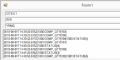
FIG. 2: Extract MTConnect Tag Names & Types (E= Event / Sample C = Condition)
To extract tags check 'Extract MTConnect Tags' (1) before connecting to the Adapter. After clicking [Connect] MTConnect outputs a list (2) of all tags received from the Adapter. Every line in the list consists of label, input tag name, translated output tag name (identical to input tag name) and tag type (E = Event or Sample, C = Condition). All values are delimited by pipe characters '|'.
'Translated output tag name' can be used by the CNCnetPDM MTConnect device driver to translate different input tag names for identical items into standardized, comparable output tag names for different Adapters e.g. ‘path_feedrate’ or ‘p1fact’ to feedrate.
Clicking on [Copy] can be used to copy the list of extracted tags and replace the entire section [MTC TAGS] of the INI file used by the CNCnetPDM MTConnect device driver for the respective Adapter.
Send Commands
By sending commands from MTConnect you can control various features of the CNCnetPDM MTConnect adapter. Commands other than * PING are only supported by the CNCnetPDM as MTConnect by design is a 'read only' protocol.
The CNCnetPDM MTConnect adapter allows you to set or change parameters or variables at your devices directly from MTConnect. However, this strongly depends on the setup of your device specific .INI file.
If, for example you have a machine with number 1000 and a Sinumerik controller that uses the sinumerikda.dll OPC classic device driver CNCnetPDM automatically creates the INI file sinumerikda_1000.ini. In this file you can find a list of commands. Command number 21 is used to read 'R Variable 2'.
However, this command is also writable. So, input of command:
* device|1000|command|21|256
results in setting 'R Variable 2' at the controller to value 256. You can quickly check the result by watching the output of MTConnect. For device control please use the input commands described under section 'WRITE DATA' of the respective device driver as the number of required input arguments varies between controllers f.i. Citizen
Ping Adapter
To check the adapter you can use the command:
* PING
If you check 'Show Ping' and send this command to the adapter by clicking [Send] the adapter responds with * PONG plus the heartbeat in milliseconds as configured in section [MTC Adapter] of CNCnetPDM.ini.
Select Device
As every single instance of the CNCnetPDM MTConnect adapter can simultaneously communicate with up to 58 machines you have to be able to control output to the MTConnect. Initially the adapter outputs data for all devices. To switch on data output to MTConnect for a single device only you can use the following command:
* device|1000|output
This would force the adapter to only output data for machine number 1000 to MTConnect. After changing adapter output MTConnect initially outputs all data items for the selected device followed by data for changed items only. To revert to output for all devices you can use:
* device|0|output
Please note that this command only affects the specific session it was sent from. If you open an additional instance of MTConnect you can make a different selection.
Switch Device Off or On
To switch off communication between a specific device and CNCnetPDM you can use command:
* device|1000|off
This command affects ALL sessions connected to a specific instance of CNCnetPDM. To switch on communication again you can use:
* device|1000|on
Activate or Deactivate Shift
If you like to only acquire data during an active shift you can set the shift state to active or inactive. To set the shift state of a single device to inactive you can use command:
* device|1000|shift|0
To set the shift state for all devices to inactive use:
* device|0|shift|0
To set the shift state to active for a single device you can issue:
To be able to collect machine data together with operational data the devices have to know which work order, operation and/or part number they’re currently working on. To do so you can ‘tag’ devices with this information.
For example, if you’d like to ‘tag’ machine number 1000 with work-order 4711, operation 10 and part number 9000 you could issue the following command:
* device|1000|order|4711|10|9000
Device number 1000 then outputs this data together with machine data in a single line, again as key | value pairs for example:
To tag a device with only one of the 3 items you can just input one of them e.g.:
* device|1000|order|4711||
This would only set work-order for machine number 1000 to 4711. You have to keep the number of pipe characters constant otherwise the command has no effect.